
Booking appointments on WhatsApp from the chat with the client
The client writes "can I get an appointment next week?", the agent asks which service, checks Google Calendar and offers two open times, the client picks one, gets a confirmation, and the appointment is written to the calendar at that moment. Anyone who prefers to pick a time alone on a link gets the public booking page, described on a separate page.
A calendar event is not an appointment workflow
Creating an event is the last step. Before that someone has to understand which service, how long it takes, which person should do it, and which times are actually free. After that someone has to confirm, remind, and deal with the move.
The assistant does those steps in the chat. It reads the request, checks availability for the length of the service, offers times, and writes a real Google Calendar event only after the customer confirms. A later “can we move it?” is the same thread, not a new process.
The scheduling workflow
Intent, then the calendar
The assistant does not open the calendar on a vague message. It works out the service and asks what is missing. Only then does it look up times.
Availability that matches the service
Each service has a duration, and only times long enough for it are offered. Fifteen free minutes are not offered for an hour-long service. On Business and up, a slot can also be a group slot, where several customers book the same time, for a class or a group.
Staff and hours
Each professional has hours and the services they perform. If the customer names a person, only that person’s free time is offered. Plan size limits how many professionals you can add: up to 2 on Pro, up to 4 on Business and Business Plus, including the owner.
Confirm, then write the event
The appointment is written to Google Calendar as a real event. A private event you add in Google blocks that time here. A change the assistant makes shows up in Google. You can also require your approval before some bookings are confirmed.
Reschedule and cancel in the chat
The customer can ask to move or cancel. The assistant finds the appointment, offers alternatives when they want a new time, and updates the calendar. The freed slot becomes available again.
After the booking
A confirmation goes to the customer. A reminder goes out before the appointment, from your WhatsApp number. If you turned it on, a payment link can go out with the booking. The reminder page describes that part on its own.
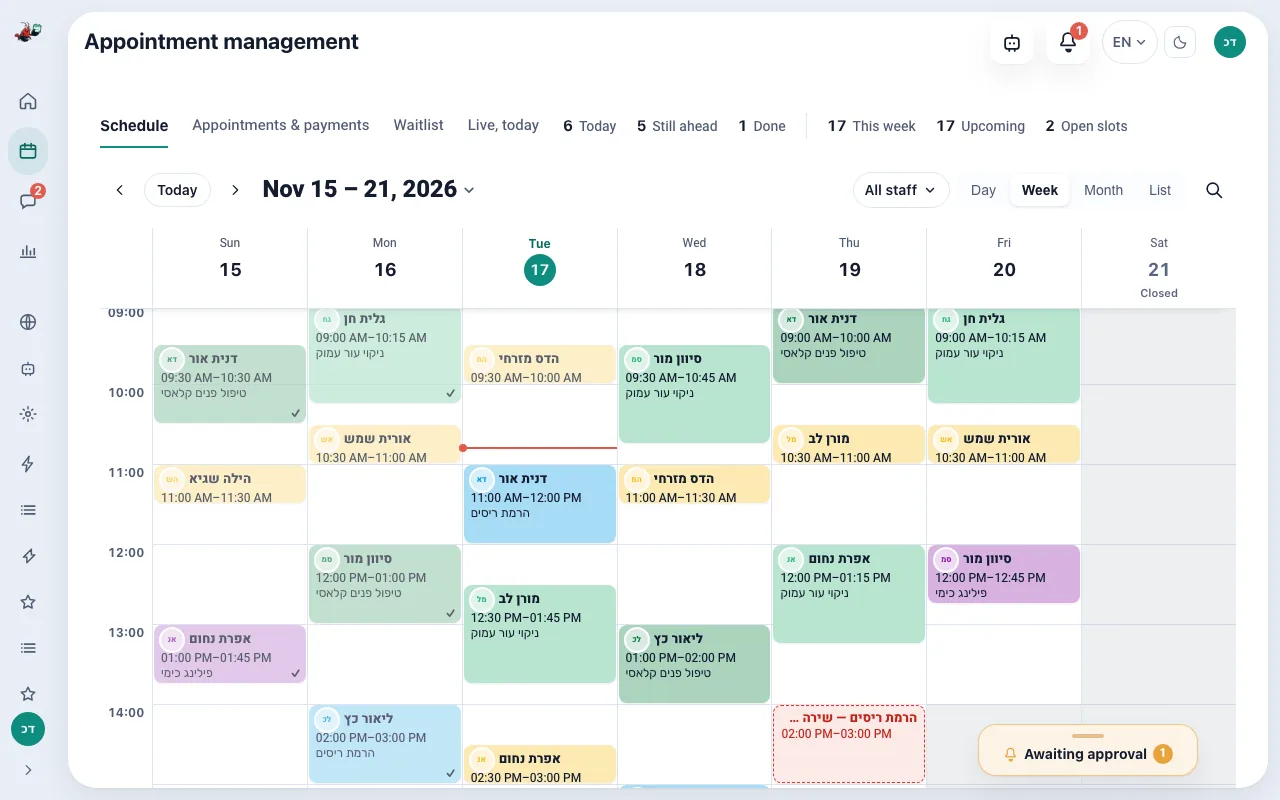
A calendar that fills from the chats

Sample for illustration: names, services and times are made up
A booking, a move and a cancellation
An example chat. The times come from the real calendar, not from a fixed list.
- Hi, can I book an appointment for next week?
- Happy to. Which service? There is a one-hour treatment and a 30-minute consultation.
- The one-hour treatment
- The calendar has Monday at 10:00 and Wednesday at 15:30 free. Which suits you?
- Wednesday
- Booked: the treatment on Wednesday at 15:30, and it is in the calendar. A reminder will come before the visit.
- Can we move it to Thursday?
- Thursday has 11:00 and 17:00 free. Which one should I move it to?
- 11:00
- Moved to Thursday at 11:00. Wednesday at 15:30 is free again in the calendar.
- Actually I need to cancel
- I cancelled the Thursday appointment. If you want another time, write to me.
From the message to the calendar
- The customer asks for a time, a service, or a change to an existing appointment.
- The assistant identifies the service and the person, and asks if either is missing.
- It checks Google Calendar for slots that fit the duration and the working hours.
- The customer picks a time. If you required approval, the booking waits for your tap.
- The event is written or updated in Google Calendar, and the customer gets a confirmation.
- A reminder is scheduled before the appointment. A cancellation returns the slot.
Why this is more than a calendar button
The customer finishes the booking in the same WhatsApp chat where they asked for it.
You do not keep a second diary. Google Calendar is the diary.
Moves and cancellations update the same event, so the day does not fill with ghosts.
A waitlist, on Pro and up, can offer a slot that opened up after a cancellation.
Calendar and pages
- Google Calendar, in both directions.
- The public booking page, for customers who prefer a link. It uses the same services and the same calendar.
- On Business and up, a booking widget on your own website: inline, a popup or a floating button, shown only on the domains you allow.
- On Business and up, a website for the business: a home page and a menu shared with the booking page, with your Google rating, nothing to build.
- Payment links, when you ask for a deposit or payment with the booking.
- WhatsApp reminders, described on the reminders page.
The booking page and calendar stay free. The assistant that books from WhatsApp runs on the trial and on paid plans. Waitlist and the owner assistant are on Pro and up. The website widget and group slots are Business and up. Staff limits depend on the plan.
PricingWhat does it cost?
The booking page stays free forever, and sign-up needs no credit card. The agent that answers, books and reminds comes with the paid plans, all listed on the pricing page.
Questions about scheduling
Does it only create a calendar event?
No. It identifies the service, checks duration and availability, offers times, confirms, writes the event, reminds, and can move or cancel later in the same chat.
What if two people could do the service?
You define which professional performs which service, and their hours. When the customer does not name anyone, the times offered are those of the people who perform that service. When they name one, only that person’s calendar is offered.
Can a booking wait for my approval?
Yes. Sensitive bookings can be set to wait for your approval before they are confirmed.
What happens to a slot when someone cancels?
The event is updated and the time is free again. On Pro and up, that time can be offered to customers on the waitlist.
Is the booking page the same product?
It is the self-serve half: a public link where the customer picks a slot. It stays free, and it writes to the same Google Calendar. This page is the half where the assistant books from a WhatsApp conversation. The same agent also answers phone calls by voice, on the Business plan and up.
Is this a computerised appointment management system?
Yes. Google Calendar is the calendar, and the agent books, moves and cancels in it from a WhatsApp chat, so a computerised appointment system does not need a second calendar or a form the client has to fill in. Clients who prefer a link can use the public booking page. The same agent also answers phone calls by voice, on the Business plan and up.
Businesses that use this
Book one appointment from a message
Start a free trial, connect Google Calendar, and ask the assistant for a time from another phone.
Start your free trial