
Appointment reminders on WhatsApp
Before the appointment, the customer gets a WhatsApp reminder from your business number and can answer it in the same chat: confirm they are coming, or ask for another time, and the assistant moves the appointment in the calendar. No improvement rate is promised here. When to send a reminder and what to write in it is covered in a separate guide.
A reminder from a strange number gets ignored
An SMS from a short code often looks like spam, and many booking tools bill it per message, so the cost grows with every appointment in the calendar. The customer already writes to you on WhatsApp, so the reminder comes from there.
The useful reminder is not only a ping. It lets the customer confirm or ask to move, so a slot that will not be used can be freed before the day starts.
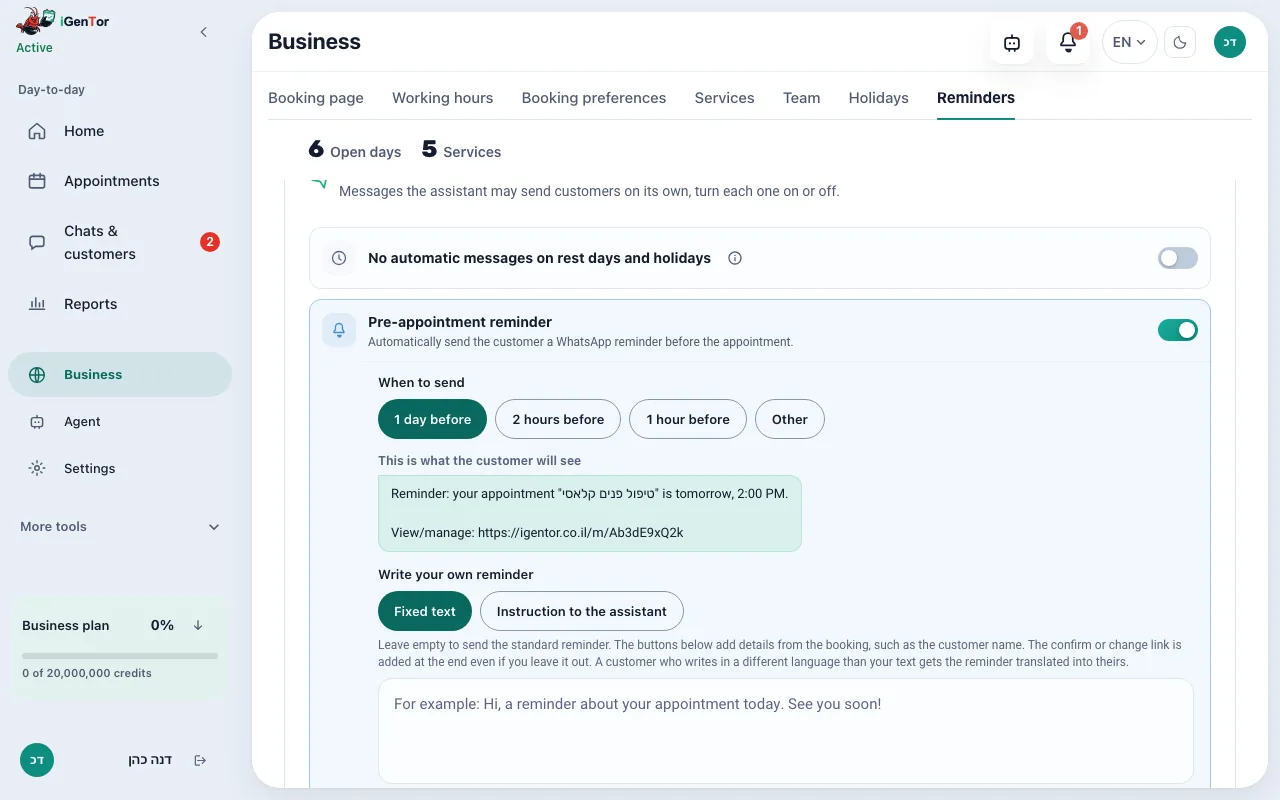
What the reminder does
Sent before the appointment
One reminder per appointment. The default is 60 minutes before, and you can change the timing, the wording and the attached media. The reminder is off until you turn it on, and sending it depends on your plan. It goes out on WhatsApp from the connected number, and igentor adds no per-message charge. A reminder sent more than 24 hours after the customer's last message is a template that Meta bills you directly, by its own price list. On the rest days and holidays you mark, no automatic customer messages go out, and a reminder that would fall on one goes a day earlier.
Confirm or move
The customer can answer the reminder in the same chat. A request to move is handled by the assistant as a reschedule, and the calendar is updated.
Your wording, and an optional photo or video
You set the text. On Pro and up a saved photo can be attached. On Business and up a video can be attached. The media is something you uploaded, not a stock image.
After the visit
Separately, you can turn on a message after the appointment. That is where a business often offers the next visit. It is off until you enable it. The same message can carry a personal review link: the customer gives 1 to 5 stars, with or without a few words, and the review shows on your booking page with your reply. That link is also off by default.
Appointments that came from Google
On Pro and up, reminders can also cover appointments that were added in Google Calendar, not only ones the assistant booked.
Attendance confirmation
On Business and up, the reminder asks the customer to confirm they are coming. Customers who did not confirm get a second reminder, and you choose what happens after that.
No-shows: what a reminder can and cannot do
A no-show leaves a slot that cannot be filled once the appointment has started. A reminder does not promise the customer will come, but it lets them confirm or move in one message, while there is still time to offer the slot to someone else.
That is why the timing should leave a gap. A customer who answers that they cannot make it gets alternative times from the calendar, and the freed slot is back in use. No improvement rate is promised here, and the no-show guide covers the other levers.
Automatic waitlist for appointments
On Pro and Business, an appointment that is cancelled or moved is offered automatically to customers on the waitlist. The offer goes out on WhatsApp to one customer at a time and is exclusive for 12 minutes. If they do not take it, it passes to the next customer on the list.
So a freed slot does not wait for someone on the team to remember to offer it. The offer follows real calendar availability, and the booking that results is written to Google Calendar.
Example: confirming and moving
Two example reminders. What reaches the team: the confirmation or the move request stays in the chat, and the updated appointment shows in the calendar.
- Reminder: your appointment is tomorrow at 16:30. You can confirm you are coming or ask to move it.
- I will be there.
- Thank you, see you tomorrow at 16:30.
- Reminder: your appointment is on Thursday at 10:00. You can confirm or move it.
- Can we move it to Sunday?
- Sunday has 09:00 and 14:00 free. Which time suits you?
- 14:00
- Moved to Sunday at 14:00. The calendar is updated and the team can see the change.
How a reminder is sent
- An appointment exists, from WhatsApp, from the booking page, or from Google Calendar when that option is on.
- At the time you configured, the reminder is sent from your WhatsApp number.
- The customer confirms, asks to move, or does not reply.
- A move updates the calendar. The new time gets its own reminder.
- If you enabled the after-visit message, it goes out after the appointment, on its own schedule.
What you can expect, without a made-up rate
The customer sees a message from the business they already talk to.
A move request is a conversation, so the slot can be offered again.
You are not buying a bundle of SMS on top of the subscription.
The timing and the wording stay under your control. The guide linked below is about how to choose them.
What the reminder is tied to
- WhatsApp, from the connected business number.
- Google Calendar, as the source of the appointment time.
- The scheduling flow, which creates the appointment the reminder belongs to.
- On Business and up, intake forms you build, which the customer fills in and signs online, and materials (links) sent after booking, before the visit.
- An optional payment link is a separate message around the booking, not part of the reminder itself.
Appointment reminders are part of paid plans, including the Pro trial. The in-reminder attendance confirmation (reply 1, 2 or 3, status and the unconfirmed check) is Business and up. A photo on the reminder is Pro and up. A video is Business and up. Google Calendar reminders for events you added yourself are Pro and up. Intake forms and materials before the visit are Business and up. Quiet rest days and holidays work on every plan. The after-visit message and the rating question are off until you turn them on.
PricingWhat does it cost?
The booking page stays free forever, and sign-up needs no credit card. The agent that answers, books and reminds comes with the paid plans, all listed on the pricing page.
Questions about reminders
Are reminders charged per message?
Not by igentor. They are sent on WhatsApp from your business number and are included in the plan, not a separate SMS bundle. A reminder sent more than 24 hours after the customer's last message is a template that Meta bills you directly, by its own price list.
Can I write the text?
Yes. You set the reminder wording. A photo or a video is optional and depends on the plan.
Does a reminder guarantee fewer missed appointments?
No number is promised here. A reminder gives the customer a chance to confirm or move. Whether that changes your week depends on the business. The guide on missed appointments explains the levers, without a guaranteed rate.
What if the customer asks to move or cancel?
The assistant treats a move as a reschedule: it offers open times and updates Google Calendar when they pick one. If the customer asks to cancel, the appointment is cancelled in the calendar and the slot is free again, as with an appointment cancellation reminder. Ready wording for a reminder, a confirmation and a cancellation is in the linked guide.
Is the message after the visit automatic?
Only if you turn it on. It is a separate setting from the reminder before the appointment.
How many reminders does each appointment get?
One. The timing, wording and media are configurable, and the default is 60 minutes before the appointment. The reminder is off until you turn it on.
How does the waitlist work?
On Pro and Business, a freed slot is offered on WhatsApp to one customer at a time. The offer is exclusive for 12 minutes, and if the customer does not take it, it passes to the next one.
Businesses that use this
Turn on reminders for the next appointment
Start a free trial, book one test appointment, and you will see the reminder scheduled for it.
Start your free trial