
How igentor works, step by step
igentor connects the business’s existing WhatsApp number to its Google Calendar. A customer writes, the agent answers from what you set, offers free times and books, and what it does not know comes to you. The same agent also answers phone calls by voice, on Business and up. This is how it looks, in screenshots of the dashboard with a sample business.
Setup, once
Sign up and set up the business
Business name, working hours and services with a duration and a price. The setup guide in the dashboard walks you through it, and the basic setup takes about 10 minutes.
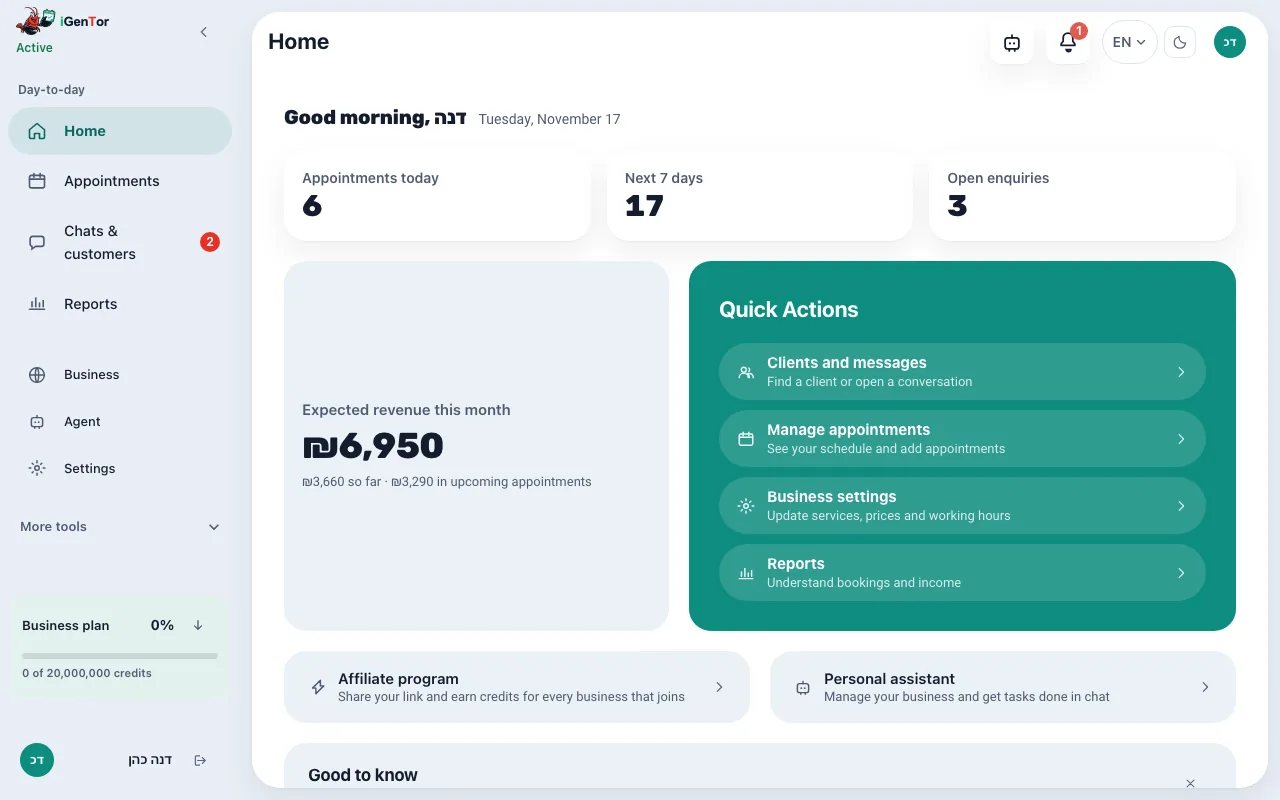
Connect Google Calendar
The agent offers only times that are free in the calendar, by the length of the service, and writes the appointment there. You can also work without a calendar: then the agent collects the request and you confirm.
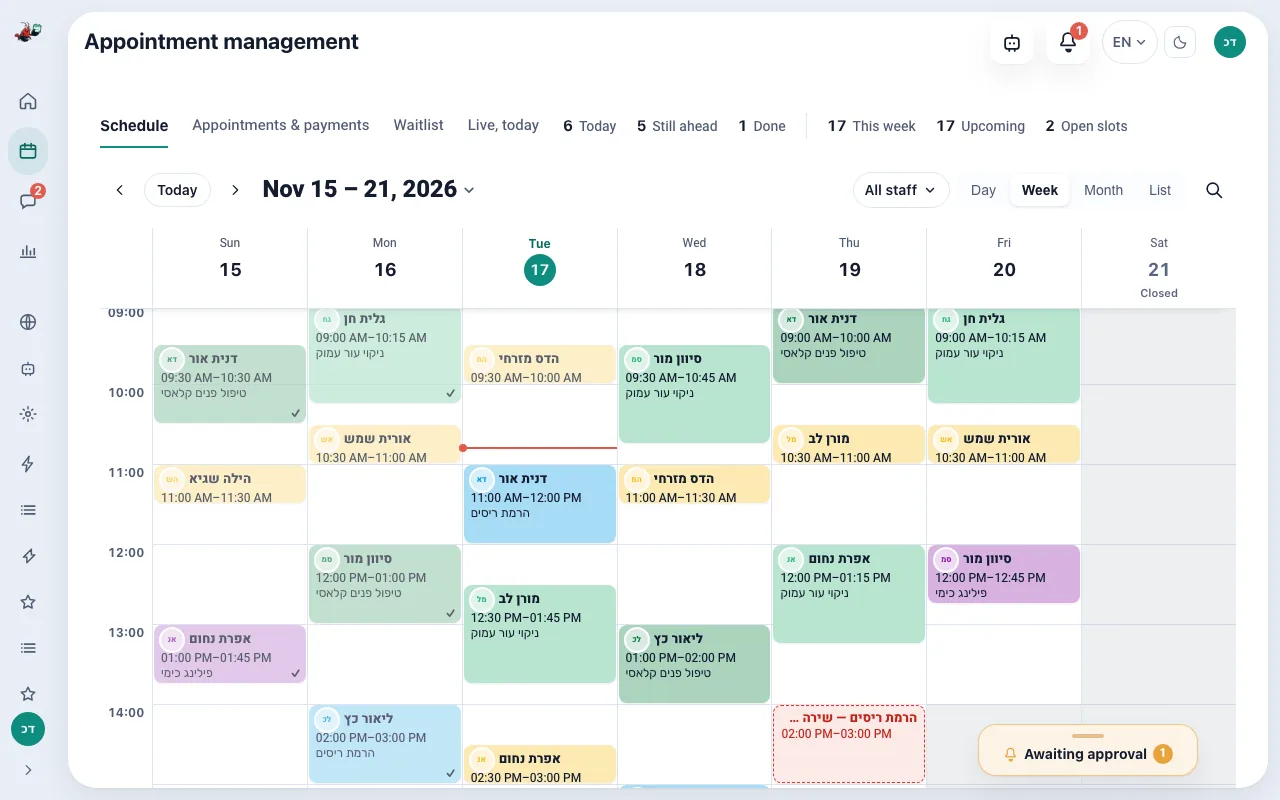
Connect your existing WhatsApp number
Press "Connect WhatsApp Business" and confirm the business and the number in Meta's window, without changing number. Customers keep writing to the same number.
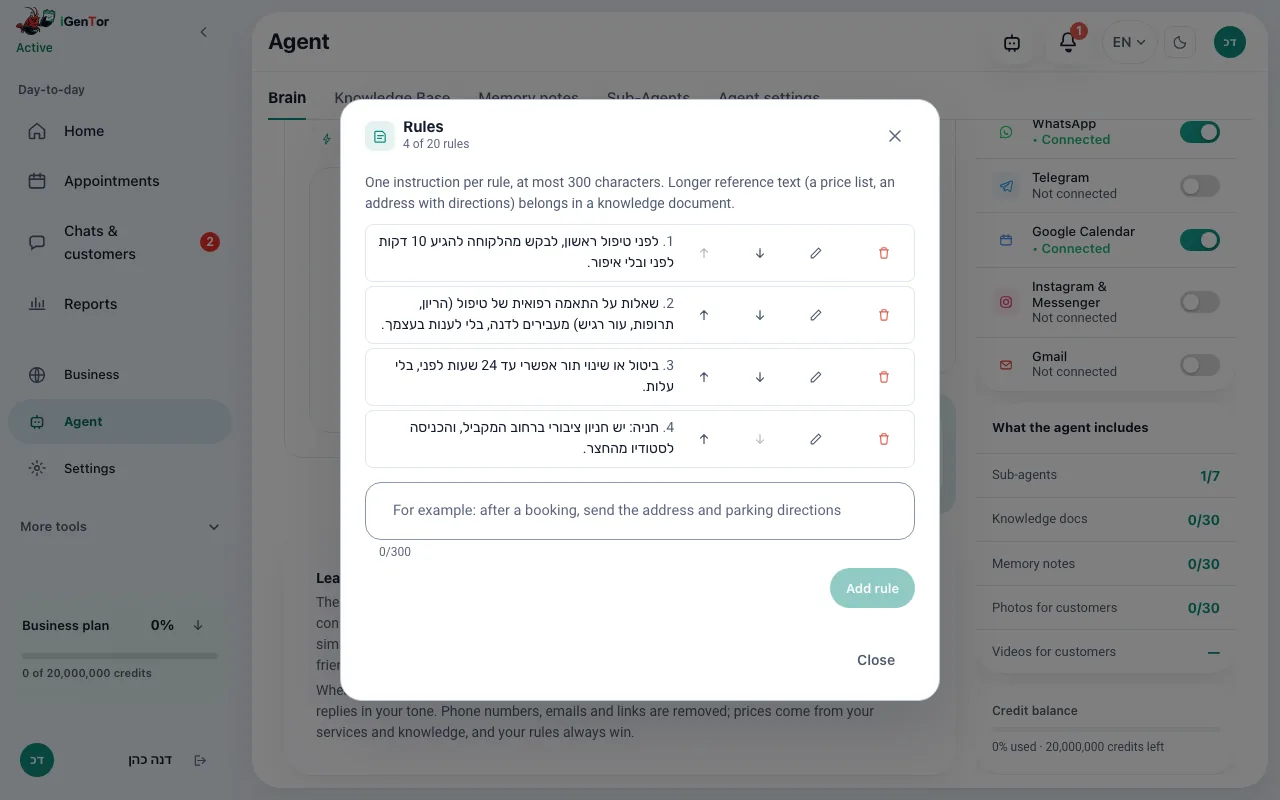
Decide what the agent says and when it asks you
Rules, knowledge documents and who can talk to the assistant. You also choose whether the agent books on its own or you approve every booking.
What happens when a customer writes
The customer writes on WhatsApp, in their own words
The agent understands an ordinary sentence, answers in the language it was written in, and asks one question when a detail is missing. When several customers write at the same time, each conversation runs on its own.
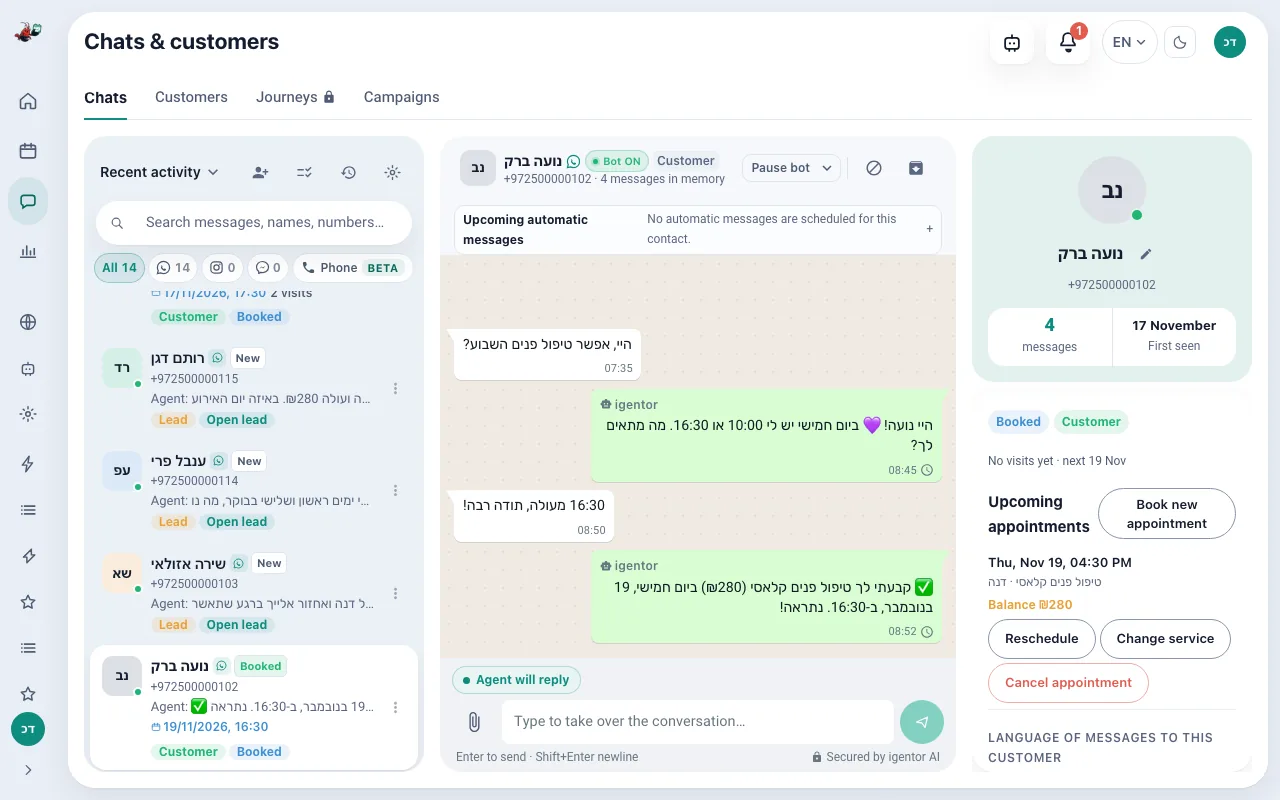
The agent offers times and books
It checks the calendar, offers free times of the right length and writes the appointment to the calendar. If you chose to approve every booking, the appointment waits for your approval.
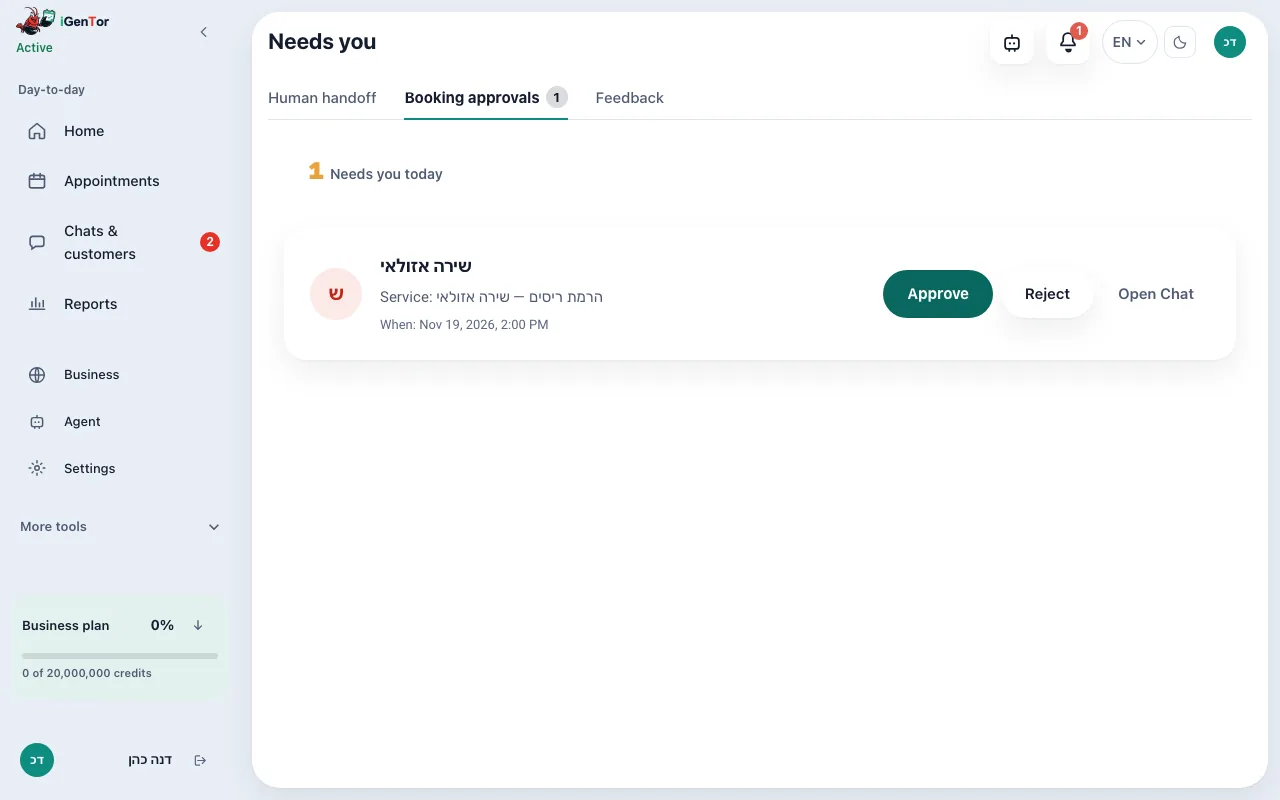
The enquiry is kept as a lead
Every enquiry is kept on a customer card with the conversation, the channel it came from and its stage.
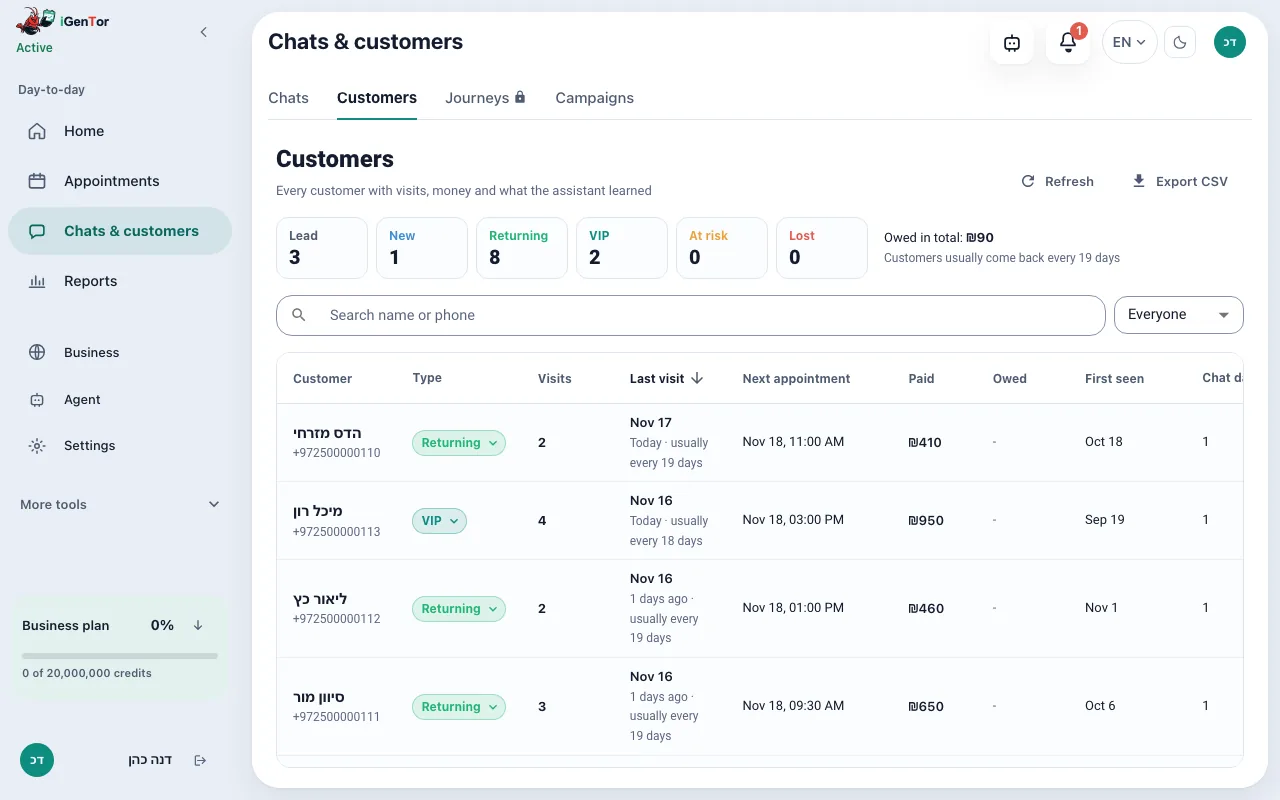
A reminder before the appointment
A WhatsApp reminder from your number, at the time you chose, with an option to confirm or move.
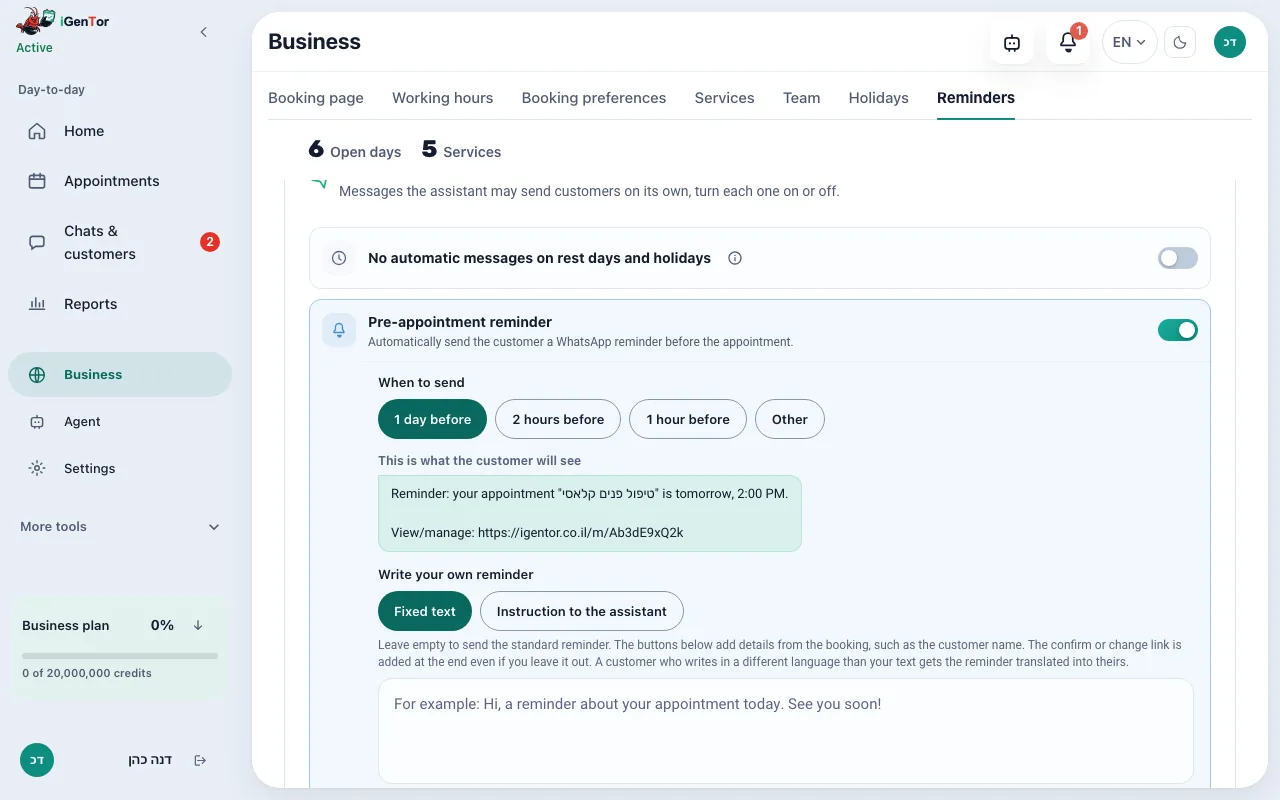
What the agent does not know comes to you
The agent is instructed to pass on a question your rules and documents do not answer, rather than guess: the customer hears the request was passed on and you get a message. When you answer yourself, the agent waits in that conversation.
What igentor does not do
- It answers phone calls only with the voice calls add-on, on the Business plan and up.
- It does not track prepaid session packages or book a series in one go: each appointment is booked on its own.
- It is not a cash register, an inventory system or payroll.
Next
Frequently asked questions
How long does setup take?
The basic setup takes about 10 minutes: connecting WhatsApp, working hours, services and the calendar. Rules and documents can be added later.
Are the screenshots here real?
Yes. They are screenshots of the dashboard with a sample business and made-up data. The conversations in them were entered as examples.
Do I need Google Calendar?
No. Without a calendar the agent answers customers and collects booking requests, but it does not offer free times, book or send appointment reminders.
Can I stop the agent from booking on its own?
Yes. In the reminders settings, on the "Booking approval" card, choose that the owner approves every booking, or that it takes a message instead of booking.
Ready to connect your business?
For new accounts: Pro features for up to 30 days from sign-up or until 3,000,000 one-time trial credits are used, whichever comes first. No credit card.
